Setting up the automatic refresh for a Power BI Online dashboard involves certain technical constraints. Specifically, it requires suitable code to retrieve data from Finalcad One.
Here’s how to do it, step by step.
To automatically refresh the data for a dashboard in Power BI Online, you need to set up specific queries in Power BI Desktop. Some of these queries can be reused directly in your datasets, while others will act as fixed parameters in the code.
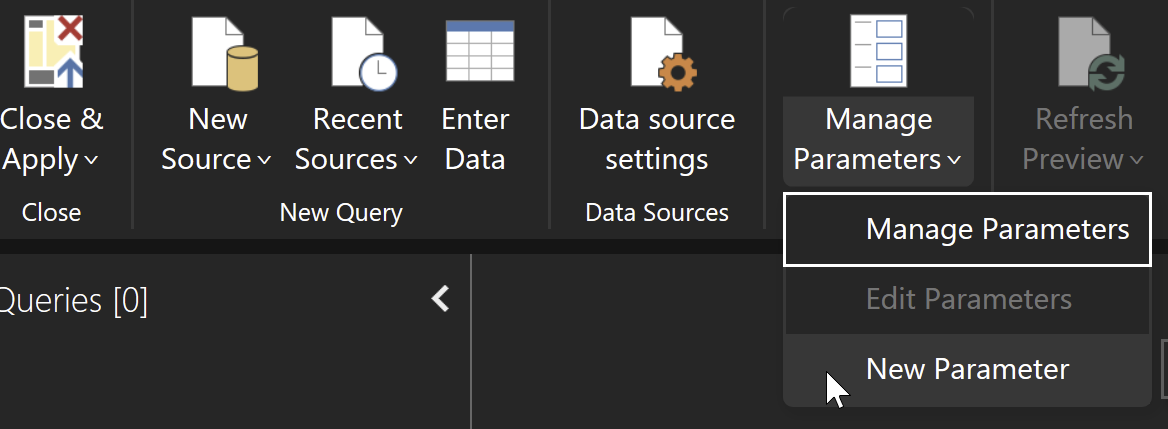
Create the following four parameters in Power BI Desktop, which are needed for query setup:
ApiUrl = https://developer.finalcad.cloud/
MediaApiUrl = https://medias.eu.finalcad.cloud
OrganizationId = the identifier of your organization
ApiKey = Your API key
These requests are needed for the automatic update of each dataset. To avoid code duplication, you can isolate them into distinct, reusable requests for all of your datasets.
(datasetName) =>
    let
        RawData = Web.Contents(ApiUrl, [
            RelativePath = "api/organizations/" & OrganizationId & "/data/config/dataseturl",
            Query = [
                name = datasetName
            ],
            Headers=[#"X-API-Key"= ApiKey, Authorization="token " & ApiKey]
        ]),
        Url = Json.Document(RawData)[url]
    in
Url(datasetName) =>
let
GetAuthenticationParameterValue = (token) =>
let
split = Text.Split(token, "="),
Value = split{1}
in
Value,
datasetUrl = GetDatasetUrl(datasetName),
queryParamPos = Text.PositionOf(datasetUrl, "?"),
queryParams = Text.RemoveRange(datasetUrl, 0, queryParamPos + 1),
splitParameters = Text.Split(queryParams, "&"),
expires = GetAuthenticationParameterValue(splitParameters{0}),
signature = GetAuthenticationParameterValue(splitParameters{1}),
keyPairId = GetAuthenticationParameterValue(splitParameters{2}),
AuthenticationParameters = [Expires = expires, Signature = signature, KeyPairId = keyPairId]
in
AuthenticationParameters(relativePath, query) =>
let
RawData = Web.Contents(MediaApiUrl, [
RelativePath = relativePath,
Query = query
])
in
RawDataOnce the parameters and queries are set up, the code to fetch a dataset becomes simpler and more modular.
The only variable to change for each new dataset is dataset_name, defined in the first lines of the script.
let
    dataset_name = "Modules",

    // Step 1: Retrieve presigned URL parameters
    authenticationParameters = GetAuthenticationParameters(dataset_name),

    // Step 2: Retrieve the dataset file
    dataset = GetDataset("data/datasets/" & OrganizationId & "/" & dataset_name & "/" & dataset_name & ".parquet", [
        Expires = authenticationParameters[Expires],
        Signature = authenticationParameters[Signature],
        #"Key-Pair-Id" = authenticationParameters[KeyPairId]
    ]),
    datasetContent = Parquet.Document(Binary.Buffer(dataset)),

    // Step 3: Sort the rows by the "updated_at" column
    SortedRows = Table.Sort(datasetContent, {{"updated_at", Order.Descending}}),

    // Step 4: Remove duplicates based on the "module_id" column
    DistinctRows = Table.Distinct(SortedRows, {"module_id"}),

    // Step 5: Add a "name" column with preferred value logic
    AddNameColumn = Table.AddColumn(DistinctRows, "name", each
        let
            valuesList = [names], // Assuming "names" is the column holding the list of records
            preferredValue =
                if valuesList = null or List.IsEmpty(valuesList) then null
                else
                    let
                        frRecord = List.Select(valuesList, each [Locale] = "fr" and [Value] <> null),
                        enRecord = if List.IsEmpty(frRecord) then List.Select(valuesList, each [Locale] = "en" and [Value] <> null) else {},
                        anyRecord = if List.IsEmpty(frRecord) and List.IsEmpty(enRecord) then List.Select(valuesList, each [Value] <> null) else {},
                        finalValue =
                            if not List.IsEmpty(frRecord) then frRecord{0}[Value]
                            else if not List.IsEmpty(enRecord) then enRecord{0}[Value]
                            else if not List.IsEmpty(anyRecord) then anyRecord{0}[Value]
                            else null
                    in
                        finalValue
        in
            preferredValue
    )
in
AddNameColumnOnce your dashboard is published on Power BI Online, a few additional steps are needed to complete the setup.
The implemented code bypasses the need for data gateways. These must, however, be configured in anonymous. A warning will still be displayed, but authentication to the Finalcad One API will be handled directly by the code and your API key.
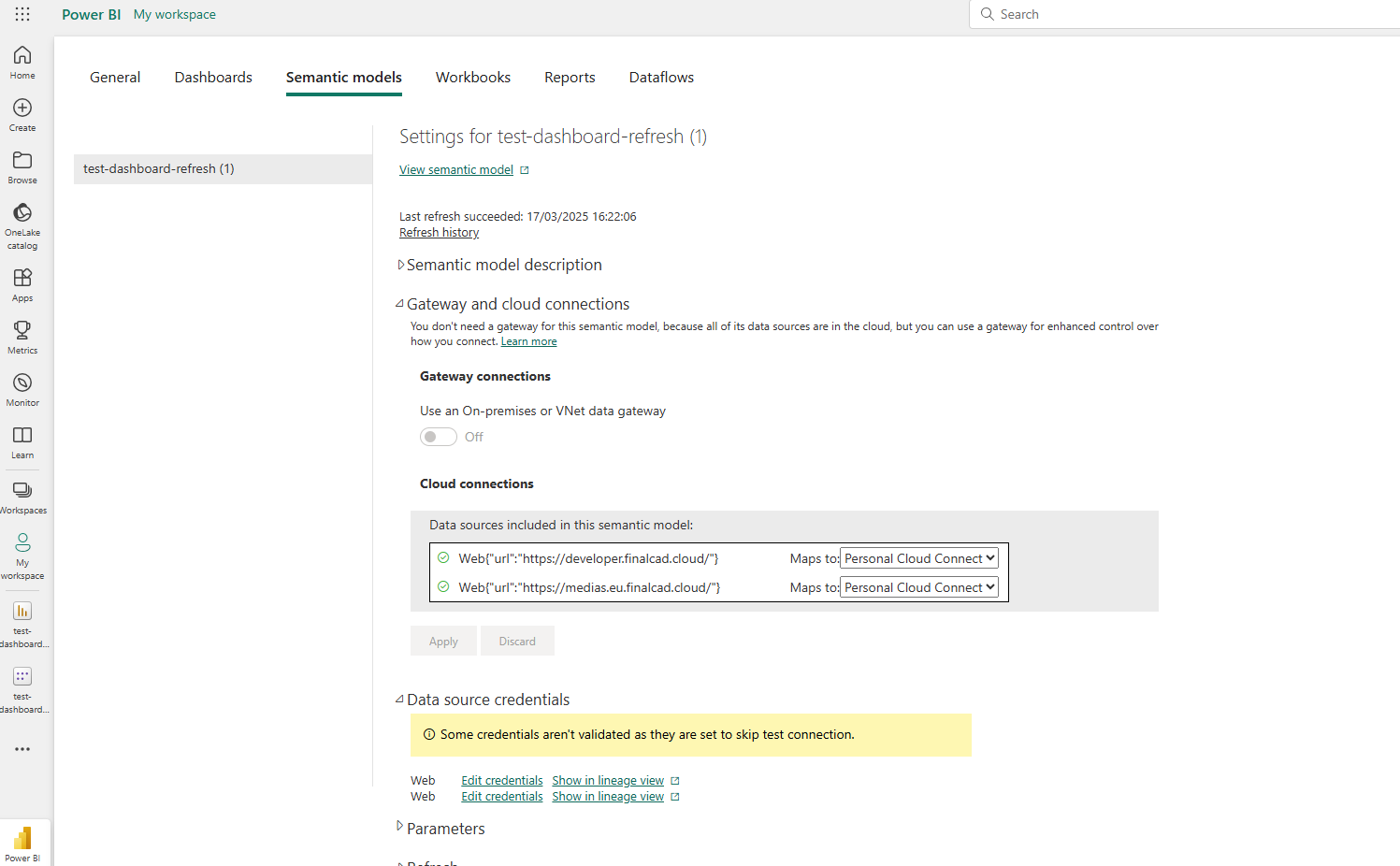
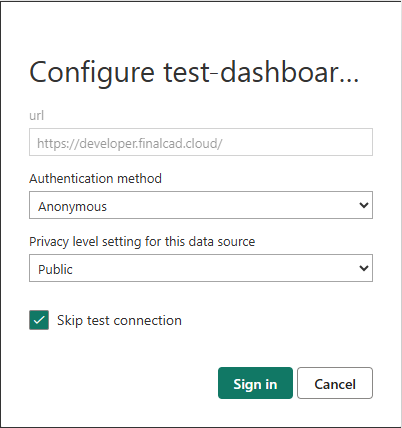
Once the gateways are configured, you can enable automatic dashboard refresh without any issue